How to install and use DS4 AI: illustrated guide
See the actual DS4 AI interface, from licence activation to saved profiles. Screenshots show Fortnite mode. Available options depend on the game and installed version.
Download ↓ Prices ↓Game licences and gameplay videos
1. Choose the right product licence
LockaimOPS resells licences for DS4 AI, presented on ds4ai.fr. Each key activates one product: Valorant, Fortnite, Apex Legends, MW4 / Warzone or Opti Son. The game is not included. Opti Son is a separate audio module.
2. Download and extract the installer
Use the LockaimOPS download page. Download the ZIP and extract its full contents to a folder on your Windows PC before opening the application. The installer is shared; your key determines access.
3. Activate your key
In the application, find “Ajouter une clé”, enter your key and click “Ajouter”. Check the product under “Mes clés”, then click “Continuer”. Screenshots show the French interface. Do not share your key or machine identifier.
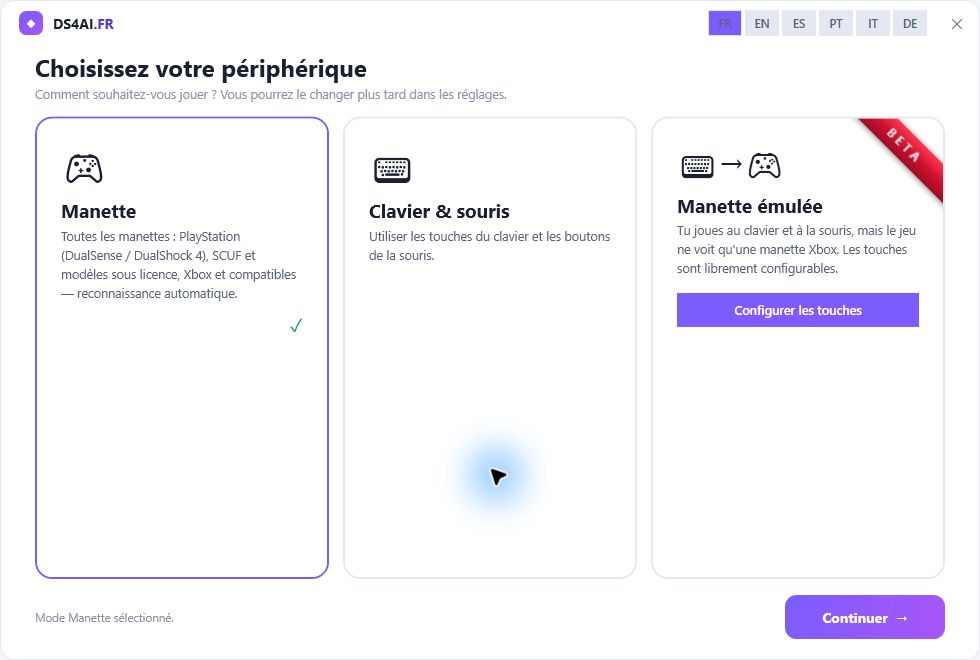
4. Select your input device
Choose “Manette” for a controller or “Clavier & souris” for keyboard and mouse. Check that the application detects your inputs before continuing. Emulated controller mode is marked as beta in the version shown.
5. Open your licensed game mode
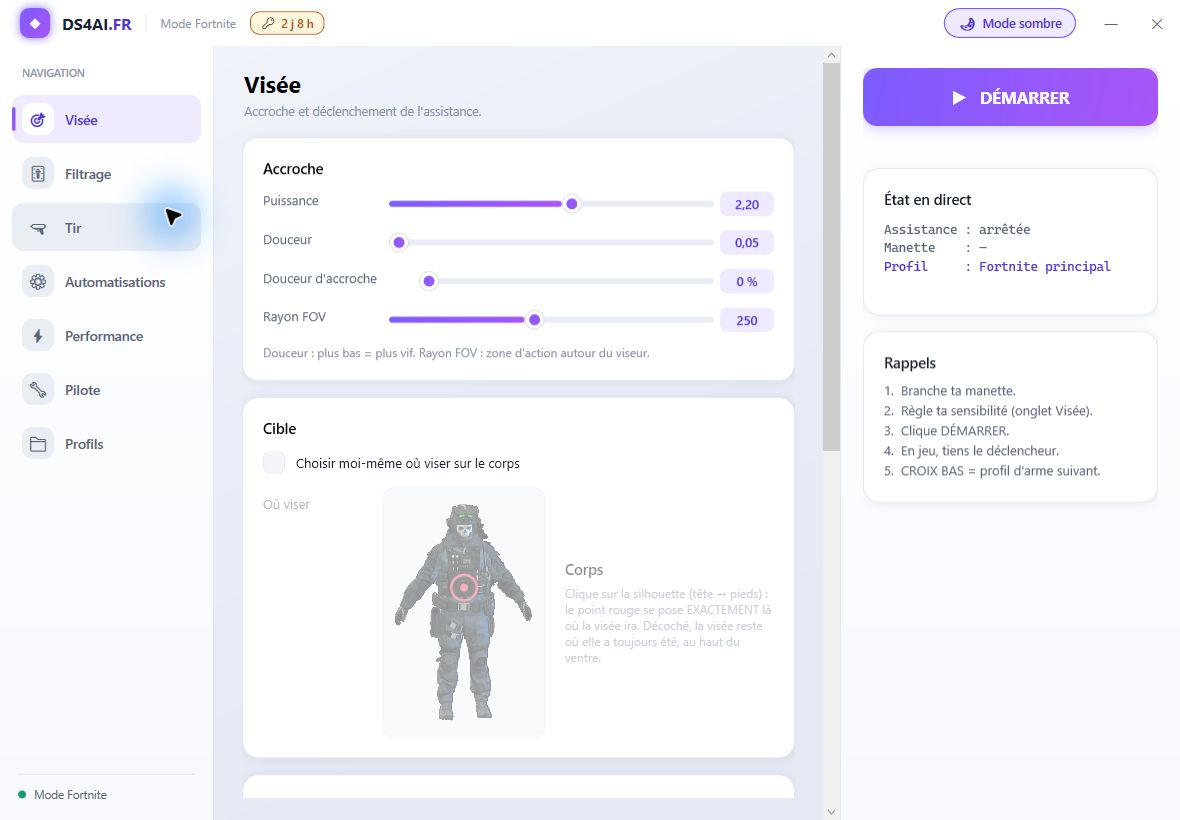
Select the available game. Products not covered by the key appear as “Non inclus”. In the Fortnite example, “Visée” contains the aiming settings. Values shown in the screenshot are examples, not a universal configuration.
6. Save your profiles
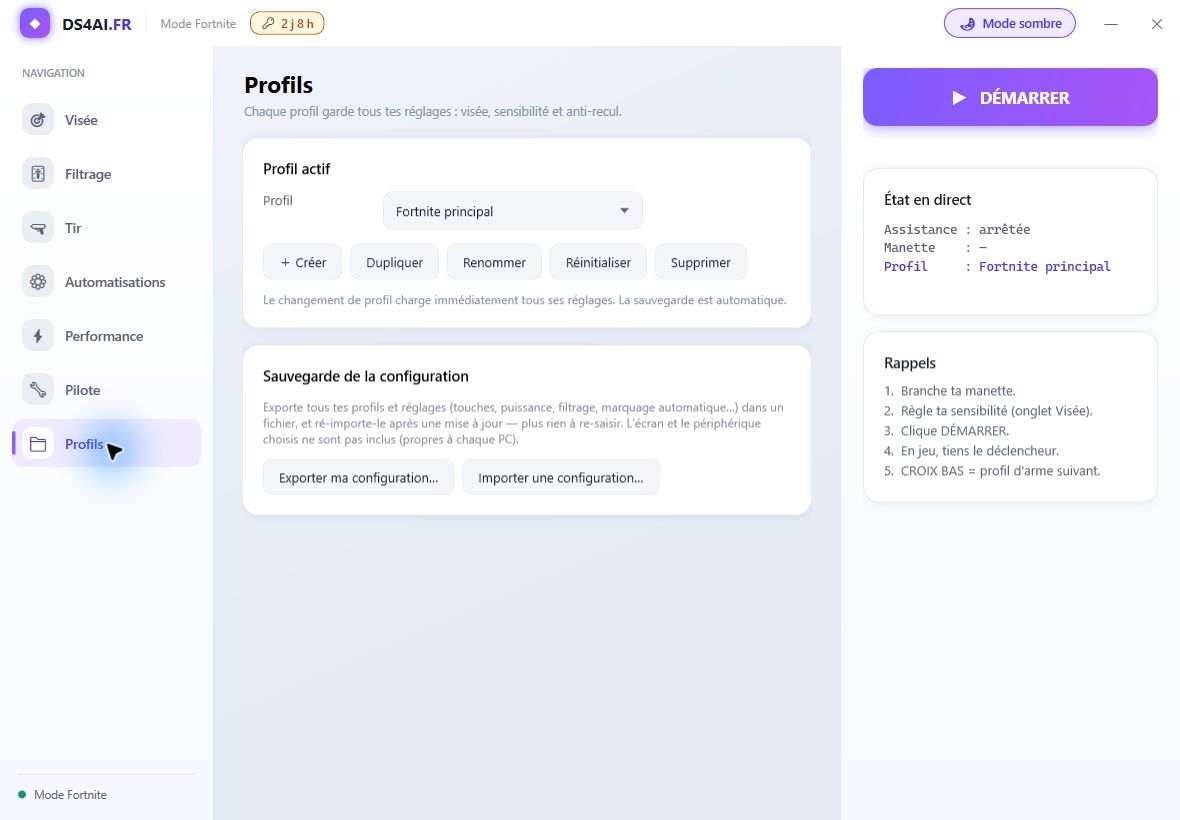
Under “Profils”, create, duplicate or rename a profile. The interface indicates automatic saving. Use “Exporter ma configuration” to keep a copy and “Importer une configuration” to restore it. According to the application, the selected display and input device are not included in the export.
Aim assistance may violate the game publisher’s rules. Detection and account sanctions cannot be ruled out. Check the publisher’s rules before purchasing.